
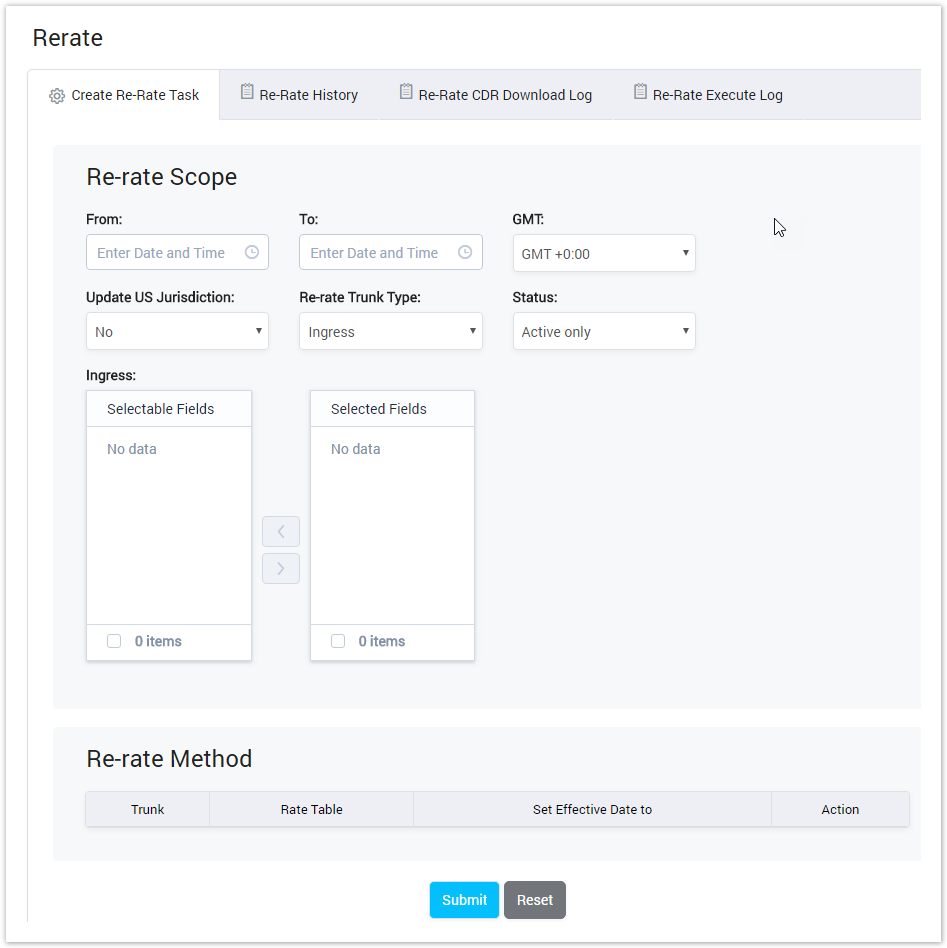
| Field Name | Description |
|---|---|
| Period | The period time that the new rate will be effectived. |
| GMT | Set the Time Zonewillapplyontheperiodtime. |
| Update US Jurisdiction | Update new Rate on US Jurisdiction. |
| Re-rate Trunk Type | Select Trunk Type to Re-rate. |
| Status | Select the type of trunk will be applied the new rate:
|
| Egress/Ingress | Select Trunk to Re-rate. |
| Trunk | Trunk Name |
| Rate Table | Rate Table will be effective. |
| Set Effective Date to | Set date/time when new Ratestarttakeeffect. |
| Action | ActionperformedonRe-rate method |
Filling in all parameters, then click on Submit button to create the new Re-Rate task, or click on Reset button to clear all fields.
Re-Rate History
This tab is used to see the history of all Re-Rate tasks.
Click on Re-rate History, this tab will be appeared as below:
Screenshot: Re-rate History

| Column Name | Description |
|---|---|
| Job ID | ID of Re-rate Task |
| FromDate | The start time that the new rate will be effectived. |
| To Date | The end time that the new rate will be effectived. |
| Status | StatusofTask. |
| Process | Theprocessoftask. |
| Trunk - Egress | List Egress Trunks which task will apply to. |
| Trunk - Ingress | ListInressTrunks which task will apply to. |
| Replace US JD | Replace US JD or not. |
| Replace Rate - Ingress | Using new Rate to replace old Rate on Ingress. |
| Replace Rate - Egress | Using new Rate to replace old Rate on Egress. |
| Effective Date - Ingress | The date/time when new rate will apply on Ingress Trunk. |
| Effective Date - Egress | The date/time when new rate will apply on Egress Trunk. |
| Action | Actio nperform on record |
| Icon | Description |
|---|---|
| Is used toshowlistofIngress Trunks which task will apply to. |
| Is used toshowlistofEgress Trunks which task will apply to. |
| Is used to Re-generate Report. |
| Is used to download New CDR. |



Re-rate CDR Download Log
This tab is used to show all Logs of Re-rate CDR Download. To know how to download Re-Rate CDR, please refer topic above ( Re-Rate History )
Click on Re-rate CDR Download Log, this tab will be appeared as below:
Screenshot: Re-rate CDR Download Log
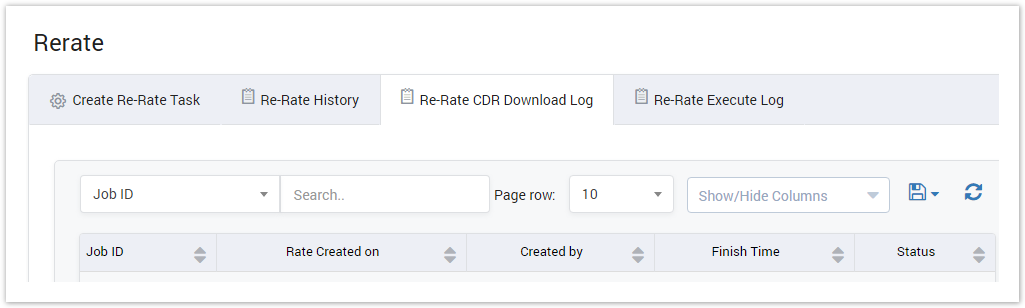
| Column Name | Description |
|---|---|
| Job ID | ID of Download Log task |
| Created On | The date/time when the Re-rate CDR was downloaded. |
| Created By | The person whodownloadRe-rate CDR. |
| Finish Time | The date/time when the Re-rate CDR is done. |
| Status | Statusof Task. |
Re-rate Execute Log
This tab is used to show all Logs of Re-rate execution.
Click on Re-rate Execute Log, this tab will be appeared as below:
Screenshot: Re-rate Execute Log
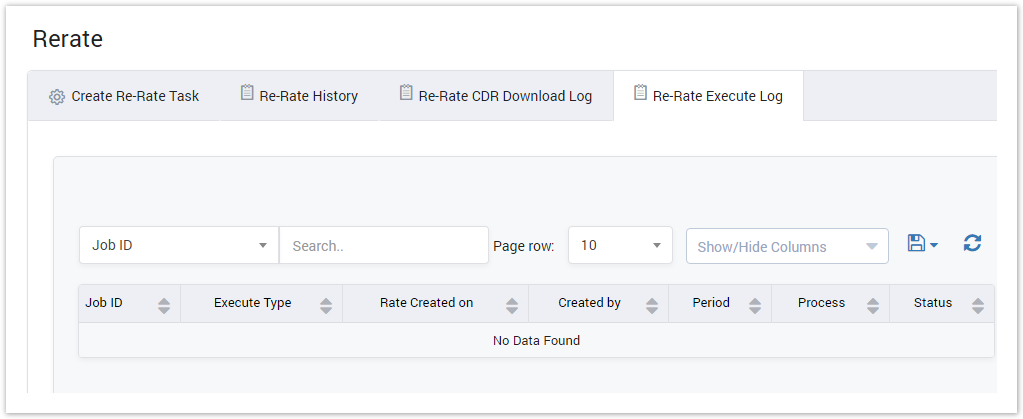
| Column Name | Description |
|---|---|
| Job ID | ID of Re-rate Execution. |
| Execute Type | Type of Re-rate Execution. |
| Created On | The date/time when the Re-rate task was executed. |
| Created By | The person who executing Re-rate Task. |
| Period | The period time of Re-rate execution. |
| Process | Process of Task |
| Status | Status of Task. |
Related pages
Popular Topics
Recently Updated Pages
